Analytics Insights Dashboard - AI Analytics Insights
Buy NowThis user guide explains the functionality of the Analytics Insights Dashboard available in the nopCommerce AI Analytics & Insights plugin. The dashboard provides AI-powered analytics, charts, revenue reports, order insights, and customer statistics.
Analytics Insights Dashboard Screen
1. Dashboard Overview
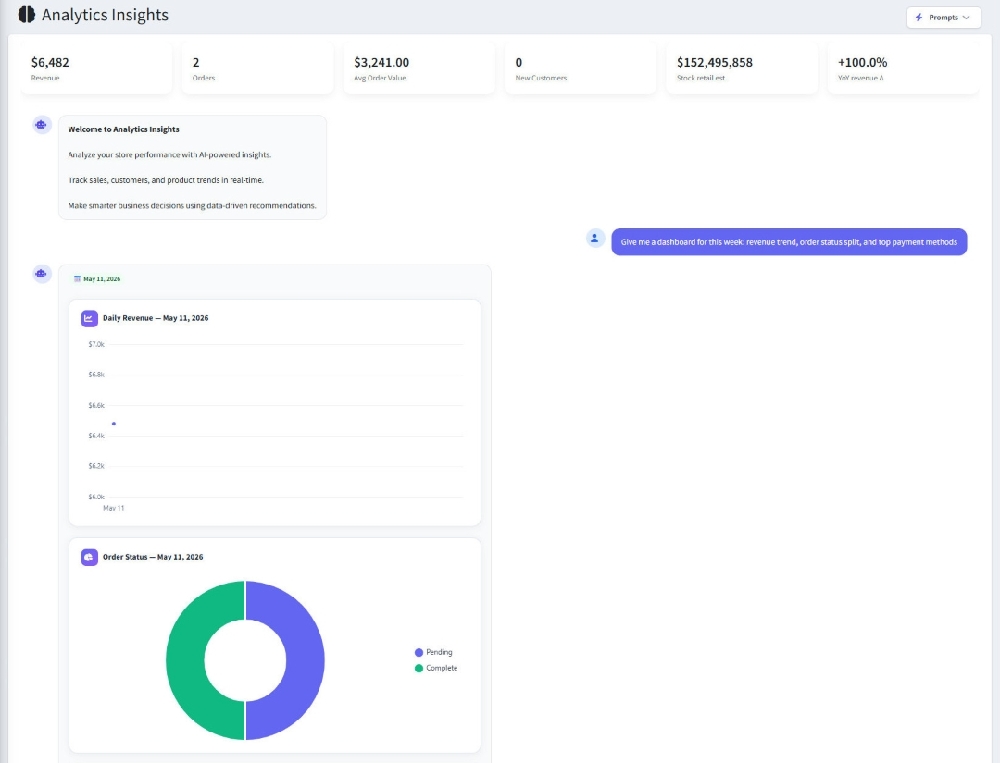
The Analytics Insights Dashboard displays business performance data using interactive charts, KPI cards, AI-generated insights, and reports.
2. KPI Summary Cards
- Revenue – Displays total store revenue.
- Orders – Displays the total number of orders.
- Average Order Value – Shows average revenue per order.
- New Customers – Displays newly registered customers.
- Stock Retail Estimate – Shows estimated stock value.
- Revenue Growth Percentage – Displays revenue increase or decrease percentage.
3. AI Insights Welcome Section
This section provides an introduction to AI-powered analytics insights. It explains how AI helps analyze sales, customer behavior, and product trends.
4. Prompt Selection
Users can select predefined prompts from the top-right dropdown. These prompts generate AI-based analytics reports and visualizations.
5. Analytics Charts
- Daily Revenue Chart: Displays daily revenue trends in graphical format.
- Order Status Chart: Displays order status distribution such as Pending and Completed orders.
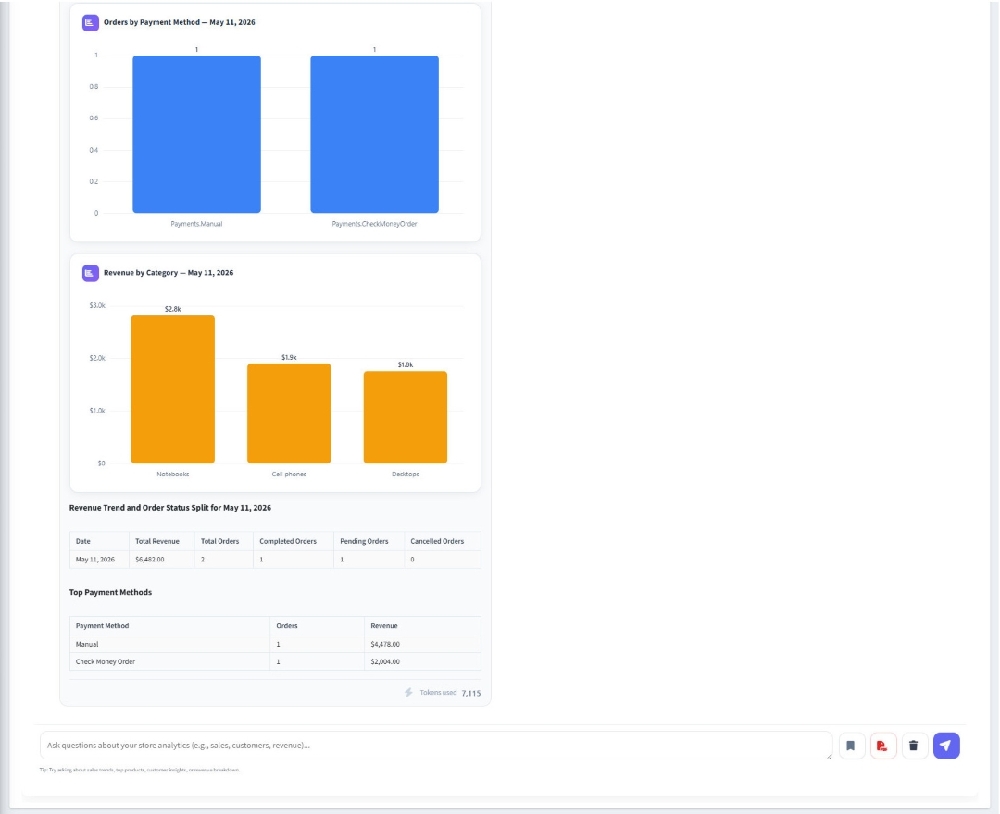
- Orders by Payment Method: Displays total orders grouped by payment methods.
- Revenue by Category: Displays category-wise revenue comparison.
6. Revenue Trend and Order Status Table
Displays detailed revenue information including total orders, completed orders, pending orders, and cancelled orders.
7. Top Payment Methods
Displays payment methods along with total orders and generated revenue.
8. AI Query Input Section
Users can enter custom business-related questions in the input field to generate AI-powered insights and analytics.
9. Action Buttons
- Bookmark Button – Save important insights.
- PDF Button – Export analytics report as PDF.
- Delete Button – Remove generated analytics results.
- Send Button – Submit custom AI queries.
Prompt Selection
Users can select predefined prompts from the top-right dropdown. These prompts generate AI-based analytics reports and visualizations.
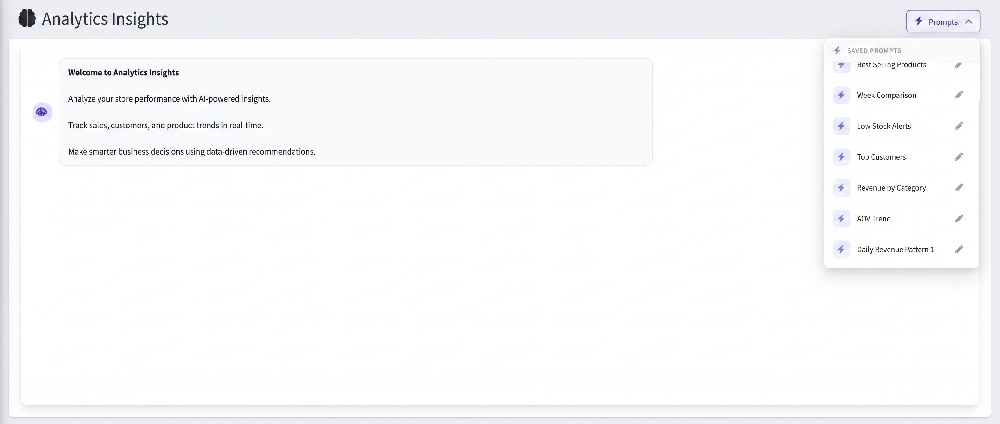
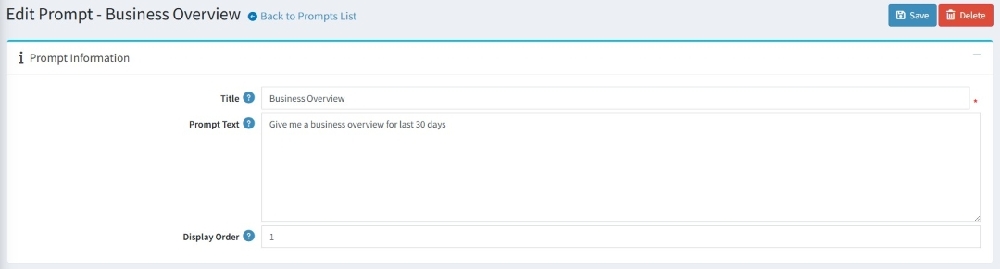
Prompt Edit: This feature allows users to edit prompts. When the user clicks on the edit icon for a specific prompt, they will be redirected to the prompt edit page where they can modify and save the prompt successfully.
Manage Prompt Page
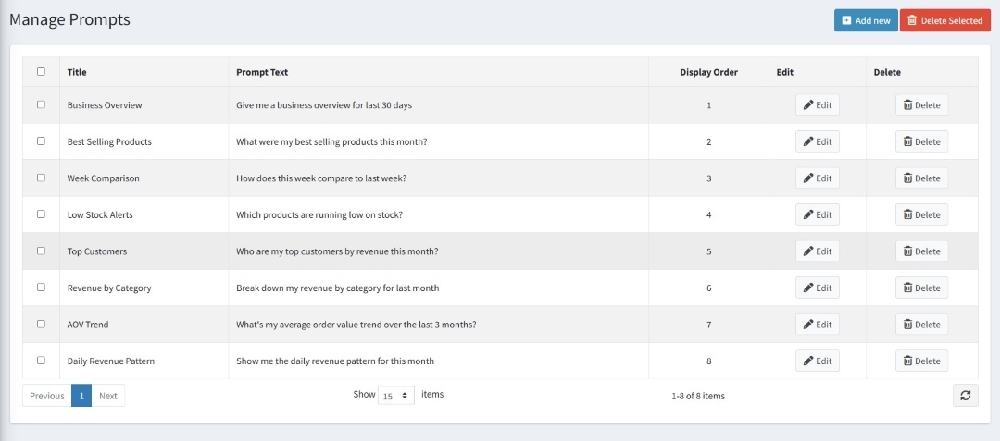
This user guide explains how to use the 'Manage Prompts' page in the nopCommerce AI Analytics & Insights plugin. This page allows administrators to manage analytics prompts, edit existing prompts, delete prompts, and create new prompts.
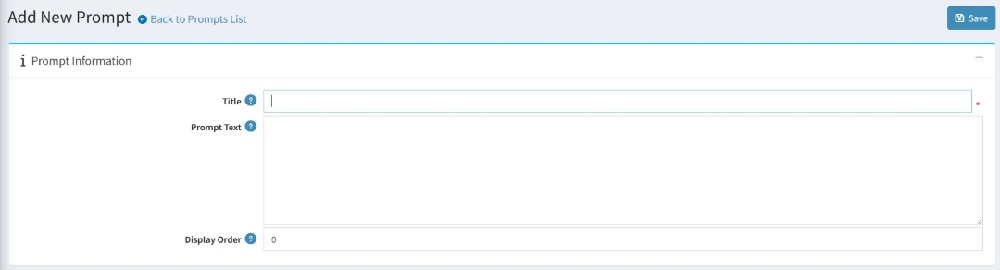
- Add New Button: Click the 'Add new' button to create a new analytics prompt. Users can define a title, prompt text, and display order.
- Delete Selected Button: Select multiple prompts using checkboxes and click 'Delete Selected' to remove multiple prompts at once.
- Prompt List Grid: The grid displays all available prompts with details such as Title, Prompt Text, Display Order, Edit, and Delete actions.
- Title Column: Displays the name of the analytics prompt.
- Prompt Text Column: Displays the actual analytics query or instruction used by the system.
- Display Order Column: Defines the sequence in which prompts are displayed in the dashboard or frontend.
- Edit Button: Click the Edit button to update prompt details such as title, prompt text, or display order.
- Delete Button: Click the Delete button to permanently remove a prompt from the system.
Add new prompt :
- Open the AI Analytics & Insights plugin from the nopCommerce admin panel.
- Navigate to 'Manage Prompts'.
- Click 'Add new' to create a new prompt.
- Provide Title, Prompt text and display order
- Click on save button
- Use pagination controls to navigate through records.
Edit prompt:
- Open the AI Analytics & Insights plugin from the nopCommerce admin panel.
- Navigate to 'Manage Prompts'.
- You are able to view the existing prompts available in the system.
- Edit Title, Prompt text and display order
- Click on save button
- Use pagination controls to navigate through records.