
Installation - AI Analytics Insights
Buy NowInstalling AI Analytics & Insights (Agentic Commerce: Analytics Insights) for nopCommerce is quick when prerequisites are already in place. Follow the sections below so licensing, dependencies, and your AI provider are ready before you open the dashboard.
✅ System requirements
Before you install, confirm the following:
- nopCommerce version: 4.90 (as declared for this plugin release). Use a build that matches your deployment target.
- Hosting: Any environment where nopCommerce runs on the supported .NET stack for your nopCommerce version.
- Admin access: Installation and configuration must be done by a user with Administrator privileges (or equivalent rights to manage plugins and NopAdvance menus).
- Outgoing HTTPS: If you will send store analytics context to an external AI provider, the server must be allowed to reach that provider’s API endpoints (check your host firewall and your NopAdvance docs index, e.g. Allowing outgoing requests, on store.nopadvance.com).
Prerequisites (required plugins)
This plugin declares dependencies in plugin.json. Install and enables these before Analytics l Insights:
- NopAdvance.Core: required NopAdvance foundation (licensing, shared admin patterns, and menus).
- Agentic Commerce Core (NopAdvance.Plugin.AgenticCommerceCore): supplies the AI provider factory and default provider settings used by Analytics Insights.
Configure Agentic Commerce Core first (default AI provider, API keys, and related options) so Analytics Insights can resolve a provider. You may optionally override the provider in Analytics Insights configuration.
Step-by-step installation
- Install prerequisites: Ensure NopAdvance.Core and Agentic Commerce Core are installed, enabled, and licensed according to NopAdvance documentation.
- Upload the plugin: Use the standard nopCommerce workflow: Configuration → Local plugins (or your usual deployment path), upload the plugin package, then click Install for AI Analytics & Insights / NopAdvance.Plugin.AgenticCommerce.AnalyticsInsights.
- Restart if prompted: Some environments require an application pool recycle or site restart after new assemblies are deployed.
- Activate license: Complete NopAdvance license steps for this plugin if your store requires it (same pattern as other NopAdvance plugins).
- Open configuration: In admin, go to NopAdvance → Plugins → the Analytics Insights menu group (plugin display name: AI Analytics & Insights), then open Configuration to review defaults (lookback days, token limits, privacy options, optional provider override).
Admin menu after installation
After a successful install, you should see the plugin under NopAdvance → Plugins, grouped with your other NopAdvance plugins — similar in spirit to how the Documentation plugin appears under the same NopAdvance area.
(Optional: insert a screenshot of your admin menu here.)
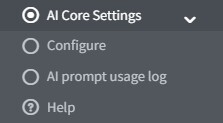
Typical menu items for Nopcommerce core plugin:
- Configuration: Plugin settings (AI parameters, context limits, conversation logging, transmitting store context to external AI, etc.).
- AI Prompt usage log: This section displays the history of AI prompt activities, including the entered prompt, AI provider, calling plugin, token usage, call steps, and creation date/time. It also allows users to filter logs using date range, plugin name, AI provider, or prompt text for easier tracking and monitoring.
- Help: This menu redirects the user to the plugin’s user guide/documentation page where they can view setup instructions, configuration details, and feature usage information.
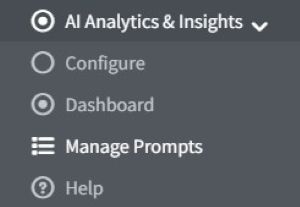
Typical menu items for this plugin:
- Configuration: Plugin settings (AI parameters, context limits, conversation logging, transmitting store context to external AI, etc.).
- Dashboard: Conversational analytics workspace (natural-language questions against live store data).
- Prompts: Manage prompt-related lists where your build exposes them.
- Help / documentation: Link to your published help topics (when configured).
What’s next?
Continue with the Configure topic for your store: confirm the AI provider from Agentic Commerce Core, set privacy and context limits for your compliance needs, then try a short date-range question on the dashboard. If anything fails to load, verify plugin load order, license status, and outbound connectivity to your AI provider.